





7 Reasons Your Mac Is Lagging During Gaming (And How to Fix It)
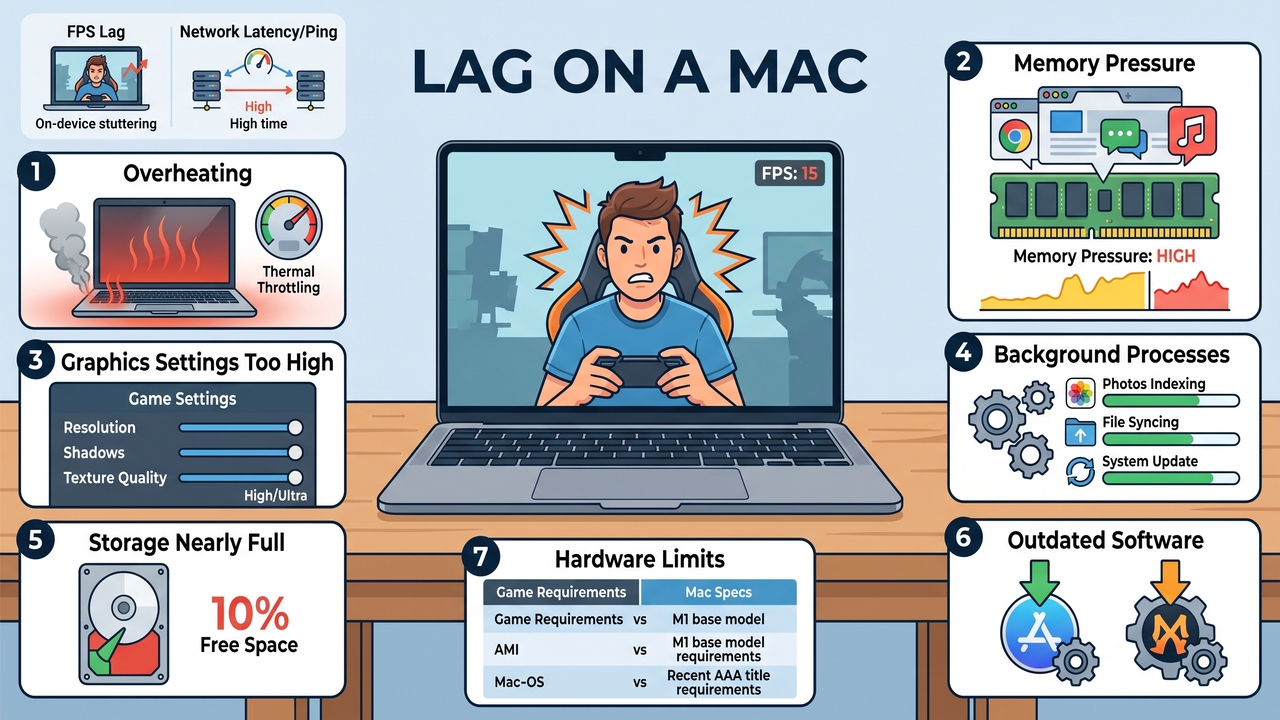
Lag on a Mac has a small number of causes. Heat, memory, graphics settings, background activity, storage space, outdated software, and the hardware itself account for nearly every case. Most of them take a few minutes to fix and cost nothing. This guide covers all seven, one section each. Every section explains what the problem does to your game, how to confirm it, and what to change. The order matters, so it is worth reading them in sequence, because the first two causes are behind most of the complaints people have about Mac gaming performance.
First, Check Whether It Is Your Mac or Your Connection
The word lag describes two different problems. The fixes for them have nothing in common, so it is worth identifying which one you have before you change any settings. These are the two:
- A frame rate problem, which happens on your Mac. The picture stutters, the controls feel slow, and the game behaves the same way online and offline.
- Network latency, which happens between your Mac and the game server. Your frame rate stays normal, but other players move in jumps, your shots do not register, and the game moves your character backward.
To find out which one you have, play offline for a few minutes in a single-player mode or a practice range and turn on the in-game FPS counter. Three results are possible:
- If the game runs smoothly offline and only stutters online, the problem is your connection or the server.
- If the game stutters offline as well, the problem is on your Mac, and the seven causes below apply.
- If you are playing an online co-op game, and everyone in your session has the same problem at the same time, no one’s hardware is responsible.
Server distance also affects latency. Many games assign you to a regional server, and the distance to that server sets a limit on your ping that no local change will improve.
Your Mac Is Overheating
Games use the CPU and GPU heavily, and both produce heat. When the internal temperature gets too high, macOS reduces processor and graphics speeds to protect the components. This is called thermal throttling, and it produces frame drops in busy scenes, stutter during loading, and performance that declines the longer you play.
Timing is the giveaway. If the game ran well for the first ten minutes and stuttered by the thirtieth, heat is the cause.
What fan noise means
Loud fans during a game are normal. The cooling system runs faster when the components get hot, which is what it is designed to do. Fan noise while gaming is not a fault by itself.
Constant fan noise when nothing demanding is open is a separate issue, and there are fixes that work for that.
MacBook Air models have no fan and rely on the chassis to release heat. They throttle earlier than other Macs and do it silently, so there is no audible warning before the frame rate falls.
How to fix it
Four changes reduce heat, and you can apply all of them in a few minutes:
- Use the Mac on a hard, flat surface. Beds, sofas, and laptop bags block the vents.
- Clear dust from the vents with compressed air if the Mac is more than two or three years old.
- Quit apps you are not using during the session.
- Lower the graphics settings by one level to reduce the load on the GPU.
The Game Is Using Too Much Memory
Recent games require a large amount of memory. When the game and your other open apps need more RAM than the Mac has, macOS moves some of that data to the SSD and reads it back when it is needed. Reading from storage is far slower than reading from memory. The result is stuttering, textures that appear late, and freezes of a second or two.
Browser tabs are the most common cause. Twenty tabs, a music app, a chat client, and a game together will exceed the memory on an 8GB or 16GB Mac.
How to fix it
Activity Monitor shows you whether memory is the problem. Follow these steps:
- Open Activity Monitor from Applications, then Utilities.
- Select the Memory tab and look at the Memory Pressure graph at the bottom.
- Read the colour. Green means the Mac has spare memory. Yellow or red means it is moving data to the SSD.
- Quit apps you do not need and check the graph again.
- Restart the Mac if the graph stays yellow or red. Memory becomes fragmented after long periods without a restart.
Your Graphics Settings Are Too Demanding
Resolution is the setting that costs the most performance. Shadow quality, reflections, ambient occlusion, and texture resolution come next. On a Mac with integrated graphics or an entry-level Apple silicon chip, raising all of these at once puts the GPU beyond what it can render at a steady frame rate.
What to lower, and in what order
Reduce these settings one at a time and test after each change:
- Resolution: Running below the native resolution of a Retina display costs less image quality than the numbers suggest and returns the most performance.
- Shadows and reflections: Set both to medium or low. They are expensive to render and hard to see during movement.
- MetalFX upscaling: Turn it on if the game supports it. The game renders at a lower resolution and scales the image up, which raises the frame rate at a small cost to sharpness.
- Frame rate cap: Set a limit the Mac can hold. A steady 30 FPS plays better than a frame rate moving between 45 and 60, because a consistent frame rate looks smoother than a higher average.
Background Processes Are Competing for Resources
macOS runs tasks in the background without being asked, and they use the same processor, memory, and disk capacity as your game. These are the ones that cause the most interference:
- Photos analysing your library
- Spotlight indexing new files
- iCloud Drive and Dropbox syncing
- Software Update downloading in the background
- Antivirus software running a scheduled scan
- Time Machine running a backup, which keeps the disk busy and affects any game that loads data during play
How to fix it
Activity Monitor identifies these as well. Open it, click the CPU column to sort by processor use, and look at what is running while the Mac is idle. Anything using more than a few percent is worth quitting or waiting out. Large syncs and macOS updates are better finished before you start a session than interrupted during one.
Your Storage Is Nearly Full
Games are heavy. For example, Valorant download size is between 40 and 55GB. If you have many large games on your Mac, you will eventually run out of space, and your computer will show it.
When the startup disk approaches full, the whole system slows down, and games add to the problem because they read large amounts of data while running.
Keep 10 to 15 percent of the drive free. On a 256GB SSD, that is between 25 and 40GB. To see what is using the space, open System Settings, then General, then Storage.
Where to find space
Work through these in order. The first one recovers the most space on most Macs:
- Games you have finished: These are the largest files on most gaming Macs, and removing one can free more space than everything else together.
- The Downloads folder and the Trash: Both fill up without being noticed and take seconds to empty.
- Apps you no longer open: Remove them along with their support files.
The Game or macOS Needs an Update
Video games are released with performance issues that are later addressed in updates. Compatibility problems between a game build and a macOS version also occur and get patched. Neither can be solved by changing settings, so check your software versions before spending time on anything else.
Three checks cover it:
- Update the game, then check for a pending macOS update in System Settings.
- Read the developer’s patch notes for Mac-specific entries. Mac builds sometimes trail the Windows version by one or two releases.
- Search the game’s subreddit, Discord, or forum for your macOS version. If an update broke performance for everyone, the reports and any workaround will already be there.
Compatibility layers and mods
Games that run through a compatibility layer need a separate check. Whisky, CrossOver, and Apple’s Game Porting Toolkit translate Windows instructions for macOS, and that translation costs performance. How much it costs depends on the version you have installed, so keep the layer updated along with the game.
Mods require the same attention. Script-heavy and AI-heavy mods increase processor load and memory requirements above what the base game needs, which is why a heavily modded install can stutter on a Mac that runs the unmodded version without trouble. Install mods one at a time so you can identify which one caused the drop.
Your Mac Cannot Handle the Game
Some games need more performance than a particular Mac can supply. A base M1 or M2 with 8GB of unified memory runs a large library well and still struggles with recent AAA titles at high settings. This has no bearing on how the Mac performs for everyday work.
Compare the published system requirements against your configuration. There are two outcomes:
- Below the recommended specification: Lowering the resolution and settings should produce a playable frame rate.
- Below the minimum specification: No combination of settings will fix it.
Playing to what you have
A hardware limit is a reason to change what you play rather than to stop. Many of the best online games for meeting people run well on modest hardware. Indie titles, older releases, and competitive games built for a wide range of systems all perform well on Macs that struggle with recent open-world releases.
Where to Start
Check the causes in this order:
- Frame rate or network.
- Heat and fan behaviour.
- Memory pressure in Activity Monitor.
- Graphics settings.
- Background processes.
- Free storage space and pending updates.
- System requirements against your hardware.
The first four account for most cases. Leave hardware limits until last, because software causes are more common and take no time to rule out. Identifying the cause takes longer than fixing it in most cases.