






Why your ping spikes mid-game (and what you can do about it)
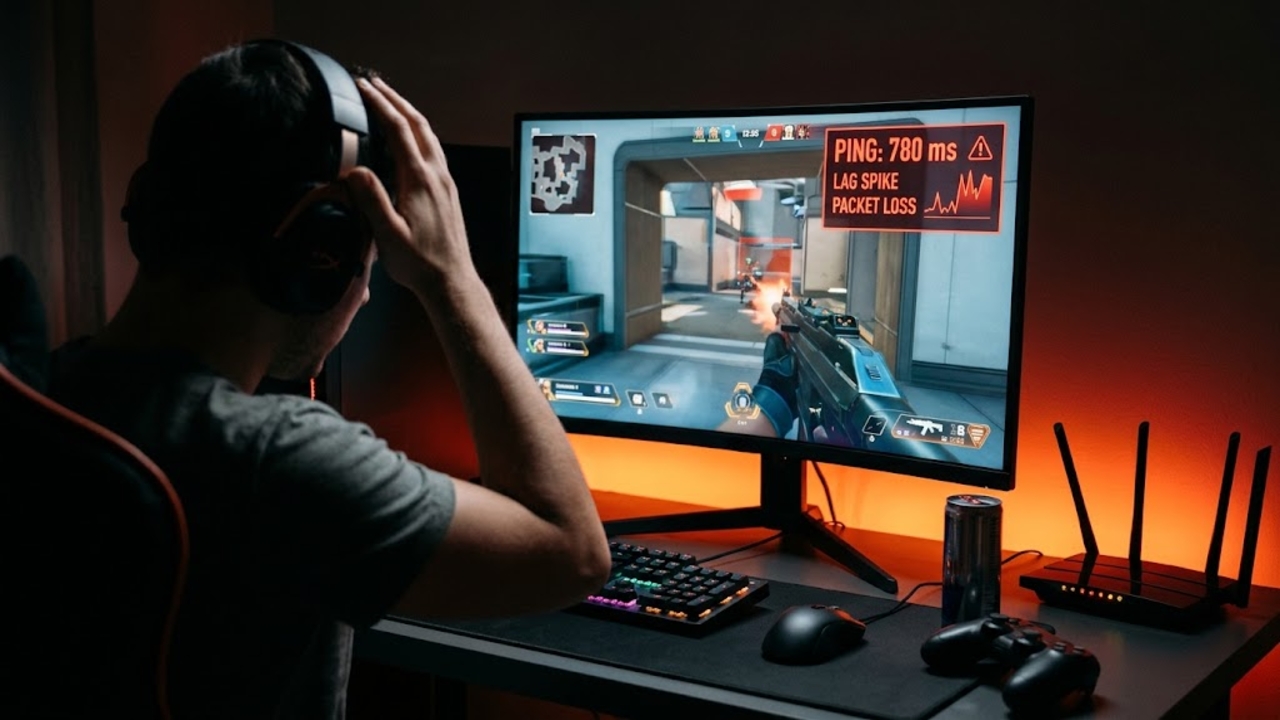
You’re one shot away from winning, your aim is lined up, you hit the button, and… nothing. A second later, your character is somewhere else and the match is over.
Sound familiar? Few things are more frustrating than a game that runs perfectly for 20 minutes, then starts lagging right when it matters. Before blaming your controller or buying a faster internet plan, it’s worth checking your ping. The problem might be easier to fix than you think.
What does ping actually mean?
Ever pressed a button in a game and caught your character taking a moment to react? That’s often your ping at work. Ping measures how long information takes to travel from your device to a game server and back. It’s measured in milliseconds (ms), and lower numbers mean faster responses.
For example, if you’re playing Call of Duty and your ping jumps from 30ms to 200ms, you might fire at an opponent who’s already moved. Frustrating when you were sure you had the perfect shot. Superfast internet doesn’t guarantee low ping. Your connection’s latency depends on the server’s distance and the route your data takes.
Why does ping suddenly spike?
Everyone’s online at once
Notice how your ping seems to get worse in the evening? You could spend all afternoon gaming without a problem, then suddenly struggle to finish a match after dinner.
There’s a reasonable explanation. More people are online, both in your home and across your internet provider’s network. Add someone streaming Netflix and a game update downloading in the background, and your connection has a lot more to deal with.
Your Wi-Fi is struggling
That router tucked behind the TV might be convenient, but walls, furniture, distance, and interference from nearby networks can make wireless connections unreliable. You might sit at 40ms one moment and spike past 150ms the next. Sometimes data packets get lost altogether, making players freeze or move unpredictably.
You’re connected to a distant server
Playing with friends overseas? Your data has farther to travel, and that takes time. Even a fantastic connection can’t eliminate the physical distance between your home and a server on another continent.
Something else is using your connection
Background downloads, cloud backups, automatic updates, and streaming tabs can quietly use your available bandwidth. You may not realize they’re running until your game starts stuttering.
How to get your ping back under control
You don’t need to overhaul your setup. Start with these simple fixes, then test your connection again.
1. Check your ping while playing
Most multiplayer games have a ping display in their settings. Turn it on and watch what happens when the lag starts. If your ping shoots up, you’re probably dealing with a network issue. If it stays low while the game stutters, check your frame rate or hardware instead. Intel’s guide to input lag explains why not every delay comes from your internet connection.
2. Try an Ethernet cable
If you can plug your PC or console directly into the router, do it. A wired connection avoids many Wi-Fi interference problems and can make ping more consistent. Can’t use a cable? Move closer to the router, keep it out in the open, and try the 5 GHz Wi-Fi band if you’re nearby.
3. Pause downloads and streaming
Before starting another match, check what’s downloading in the background. That 40 GB game update you forgot about could be fighting for bandwidth while you’re trying to play. Pause it, along with any other downloads, and see whether your ping settles down. It’s a simple test, and it costs nothing.
4. Pick a closer game server
Check whether your game lets you select a region. Choosing a nearby server often helps because your data has less distance to travel. Steam’s support guidance recommends checking server latency before joining. A local server will generally feel more responsive than one halfway around the world.
5. Restart your router and check its settings
A restart can clear temporary connection problems. If spikes keep returning, check for router firmware updates and look for a Quality of Service (QoS) setting that prioritizes gaming traffic. If these don’t settle things down, there are more detailed guides on how to reduce ping that cover router configuration and advanced settings.
What if nothing works?
Test at different times and compare Wi-Fi with Ethernet. If lag happens every evening, even with other devices idle, contact your internet provider with your ping readings.
Remember, no setting can make a faraway server local. A VPN won’t automatically lower ping, and routing through another server can add delay. It can occasionally help if your provider’s route to the game server is congested, but it’s not a general fix. For your next session, check your in-game ping, pause downloads, try a cable, and choose the closest available server.
You might not fix every spike, but you’ll have a much better idea of what’s causing them.
Once your connection is dialed in and your latency is stable, the next step is teaming up with players who share your region and playstyle. Head over to GameTree to connect with compatible gaming partners and build squads that play on the same servers, keeping your matches coordinated and your latency low.